Key Takeaways on Project Timeline Templates
- Project timeline visually communicates a project’s phases, milestones, and deadlines.
- A project timeline template provides a reusable structure.
- Excel works well for creating and maintaining detailed project timelines.
- PowerPoint and Google Slides are better suited for stakeholder presentations.
- A timeline should include dates, phases, tasks, milestones, owners, status, and important dependencies.
- Project timeline templates can be used for presenting project updates to stakeholders.
A project timeline gives you a simple visual way to understand what needs to happen and when it needs to happen at different stages of a project. It is an important tool in project management for project planning and tracking.
A project timeline template gives a ready made structure for you to customize with your own project phases, tasks, dates, milestones, owners, and status. Instead of building a timeline from scratch each time.
We’ve also provided a free downloadable project timeline template to make project planning easier for you. So let’s explore the project timeline template further!
What Is a Project Timeline Template?
A project timeline template is a pre-designed framework that helps project managers organize and communicate project activities across a period of time.
A project timeline can show:
- Project phases
- Tasks
- Start and end dates
- Milestones
- Deadlines
- Dependencies
- Task owners
- Progress
The exact level of detail depends on how the timeline will be used. The project timeline further helps to distinguish a few related concepts such as:
- Project plan – Defines what the project needs to accomplish and how the work will be managed.
- Project schedule – Defines when activities will happen and the sequence in which they’ll occur.
- Project timeline – Communicates information in a visual format across a time period.
A timeline therefore doesn’t necessarily replace a detailed project schedule. It provides a quick visual overview of the schedule that’s easier for the project team and stakeholders to understand.
What Should a Project Timeline Include?
There is no single format that every project timeline must follow. However, the following elements are useful to include:
| Element | Purpose |
| Project phases | Shows the major stages of the project |
| Tasks | Breaks project work into activities |
| Start date | Shows when an activity begins |
| End date | Shows when an activity is expected to finish |
| Duration | Shows how long an activity will take |
| Milestones | Highlights important checkpoints or achievements |
| Dependencies | Shows relationships between activities |
| Task owner | Establishes responsibility |
| Status | Shows current progress |
| Deliverables | Connects activities to expected outputs |
| Risks/blockers | Highlights schedule concerns |
Note: You can also include task IDs, departments, notes, priority, and percentage complete for more advanced timelines.
The important point is not to add information that supports its purpose without becoming difficult to read. Now let’s see the step-by-step process of how to create a project timeline.
How to Create a Project Timeline
You can build a project timeline from scratch or start with a template. If you’re creating one yourself then follow these steps:
Step 1: Define the project scope
Start by identifying what the timeline will cover.
Clarify the project:
- Objectives
- Major deliverables
- Expected start date
- Target completion date
- Key constraints
Step 2: Break the project into phases
Group the work into logical stages. For example, a project’s phases may be in the order of: Initiation, planning, execution, testing, deployment, closure.
The exact phases may differ as per your project and methodology.
Step 3: List project tasks
Break each phase into the activities required to complete it. Avoid making the timeline unnecessarily detailed if it is intended for project stakeholder communication. A working project timeline can contain more task level information.
Step 4: Estimate task duration
Add the expected start and end dates for each activity. This allows you to see how long each task is expected to take and whether multiple activities overlap.
Step 5: Identify dependencies
Determine which activities depend on other activities being completed. For example, user acceptance testing may depend on development being completed first.
Step 6: Add milestones and deadlines
Highlight significant checkpoints such as:
- Project kickoff
- Design approval
- Prototype completion
- Testing completion
- Go-live
- Project closure
Milestones make the timeline easier to scan.
Step 7: Assign owners and track progress
Add an owner for important activities and update the status as the project progresses. This turns the timeline from a static project management plan into a useful project communication tool.
These steps will ensure your timeline includes all the important milestones and details for your project. It enables easier project tracking. So let’s look at some examples of project timeline templates.
Project Timeline Templates Examples
Below we’ve explained project timeline templates for different project management needs. This information will help you understand how to use project timelines on different platforms for your project size and complexity.
1. Simple Project Timeline Template
The simple project timeline is designed for small projects and internal initiatives. It can be used by students or beginners and teams that need a straightforward visual overview.
Fields include:
- Phase
- Task
- Owner
- Start date
- End date
- Status
This template keeps the timeline simple without adding unnecessary project management fields. It is best for small projects, short term initiatives, and basic planning.
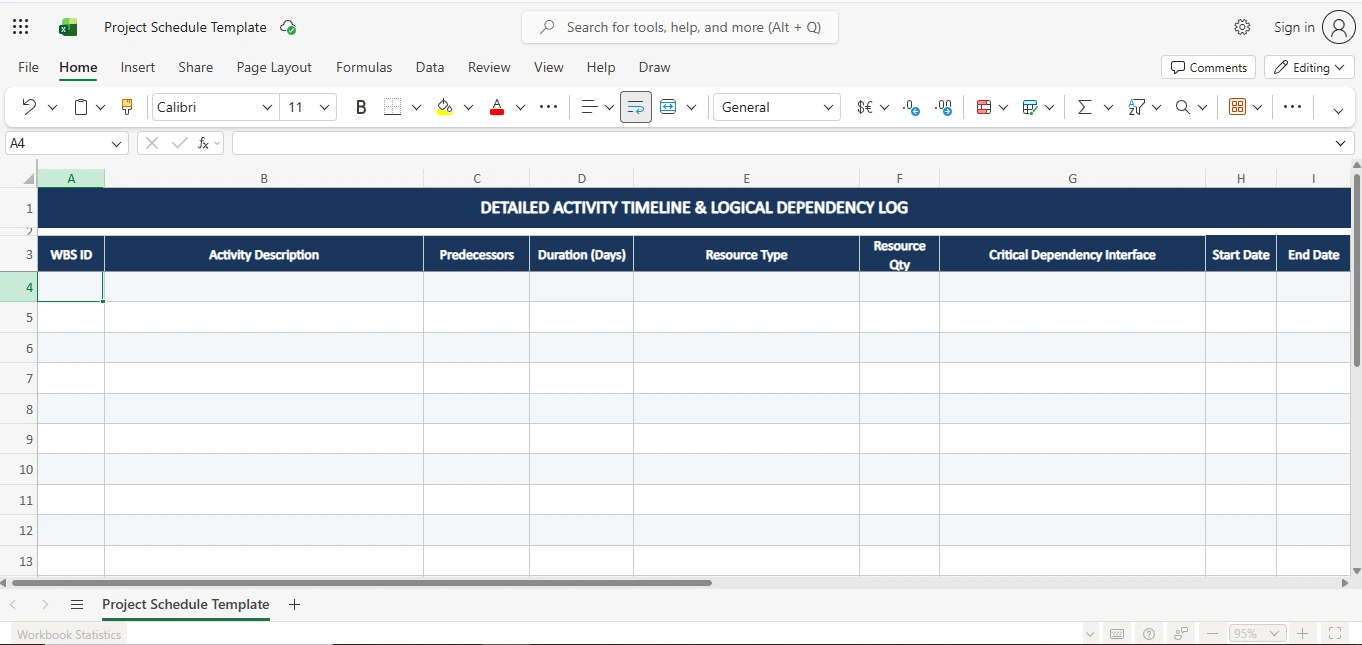
Download the detailed Project Schedule Template: Here
How to Use the Simple Project Timeline Template
- Start by adding the major phases of your project
- Break each phase into individual tasks
- Enter the start and end dates
- Assign an owner
- Update the status as the project progresses
The timeline can then be used during team daily standup meetings or project reviews for a quick view of what has been completed and what still needs attention.
2. Project Timeline Template With Milestones
A milestone based timeline focuses on the important checkpoints within a project. It helps teams and stakeholders identify significant events and deliverables.
Fields include:
- Project phases
- Major tasks
- Key milestones
- Deadlines
- Owners
- Status
- Deliverables
Milestones can be differentiated from regular activities so that stakeholders can determine important dates. It is best for project reviews, stakeholder communication, project kickoff meetings, and project reports.
How to Use the Project Milestone Timeline
1. Add the project’s major phases and activities
2. Identify the events that represent important:
-
-
- Achievements
- Approvals
- Decisions
- Deliverables
-
3. Mark the abovementioned as milestones.
You must keep the milestone timeline focused on significant events. This makes it easier for stakeholders to understand the project’s progress at a glance.
3. Project Timeline Template Excel
An Excel project timeline template is useful when you need to work with project data while maintaining a visual overview.
Fields include:
- Project phase
- Task ID
- Task
- Owner
- Start date
- End date
- Duration
- Status
- Milestone
- Dependencies
- Priority
- Notes
This type of template can also be used to present an overview to stakeholders over a period of time. It is best for detailed project planning, tracking and scheduling, team coordination, and teams that need regular updates.
How to Use a Project Timeline Template in Excel
- Add the project name and overall project dates.
- Enter the major project phases.
- Add individual tasks under each phase.
- Enter the planned start and end dates.
- Add task owners and priorities.
- Identify important milestones and dependencies.
- Update the status of each activity as work progresses.
- Review the timeline for overlapping activities or scheduling issues.
- Add notes for important changes or project updates.
- Keep updating the timeline to reflect the current project schedule.
An Excel timeline works best when it is treated as active project documentation. Therefore, it is important to keep the timeline updated.
Project Timeline Template PPT
A project timeline template PPT is designed more for communication than detailed schedule management. An Excel timeline can help a project manager work with the schedule. A PowerPoint timeline can help the project manager communicate the schedule.
A presentation timeline should therefore avoid excessive task level detail.
Fields include:
- Project phases
- Major activities
- Key milestones
- Dates
- Deliverables
- Phase descriptions
- Project start and end dates
A PPT project timeline template can help project managers communicate the overall project roadmap. It is best for project presentations, status reviews, executive updates, and project roadmaps.
How to Use a Project Timeline Template in PowerPoint
- Add the project name and overall project dates
- Replace the placeholder phases with your project’s major phases.
- Add the dates or time periods for each phase.
- Add the most important milestones and deliverables.
- Include short descriptions where additional context is needed.
- Remove detailed tasks that are not relevant to the presentation.
- Check that dates, milestones, and phases are easy to read.
- Apply your organization’s branding or presentation style if required.
- Review the timeline to make sure it fits on the slide.
Your completed timeline will then be ready to use during project reviews and presentations. It will help you communicate the bigger picture to your stakeholders.
Google Project Timeline Template
A Google project timeline template can be created using either Google Sheets or Google Slides. It depends on whether you need to track project activities or present the project schedule.
Google Sheets is generally more suitable for working with project data. Google Slides is better suited to visual communication.
Project Timeline Template Google Sheets
A Google Sheets project timeline template can help teams organize and update project activities in a shared online spreadsheet.
Fields include:
- Project phase
- Task
- Task owner
- Start date
- End date
- Duration
- Status
- Milestone
- Priority
- Notes
Google Sheets project timeline is useful for collaborative project scheduling, task tracking, and shared project plans that need to be updated often.
How to Use the Project Timeline Template in Google Sheets
- Open the template and make a copy in your Google Drive.
- Add your project name and overall project dates.
- Enter the project phases and tasks.
- Add start and end dates for each activity.
- Assign task owners.
- Add milestones and important deadlines.
- Update the status of each task as work progresses.
- Use filters or sorting to review specific activities or owners.
- Add notes for changes, blockers, or important updates.
- Share the sheet with relevant team members and keep it updated throughout the project.
Google Sheets supports real time collaboration. This means multiple team members can contribute to the same project timeline without maintaining separate copies of the file.
Project Timeline Template Google Slides
Use Google Slides when the main purpose is to present the project timeline rather than manage individual tasks. It is best for communicating project phases, major milestones, and deliverables in a simple visual format.
Fields include:
- Project phases
- Key activities
- Milestones
- Dates
- Deliverables
- Phase descriptions
- Project start and end dates
It can be best for remote teams, collaborative presentations, stakeholder updates, and teams using Google Workspace.
How to Use the Project Timeline Template in Google Slides
- Open the template and make a copy.
- Add your project name and dates.
- Replace the placeholder phrases.
- Add major milestones and deliverables.
- Update the dates and descriptions.
- Remove unnecessary detail.
- Adjust the layout to fit your project.
- Share the completed timeline with stakeholders.
Google Slides is a good option when the project timeline needs to be easy to present and share for collaboration.
The various platforms above can be used for your project as per its requirements and complexity. These templates will allow easier project timeline creation.
Now let’s ensure your project doesn’t miss anything by creating a project timeline checklist.
Project Timeline Checklist
Your project timeline must include dates with milestones and ownership. Ensure you do not miss adding the important details. So check the following before publishing or sharing your project timeline:
- Project start and end dates are realistic
- Major project phases are identified
- Important tasks are included
- Tasks have owners
- Dependencies are visible where relevant
- Major milestones are clearly marked
- Critical deadlines are highlighted
- Status information is current
- Deliverables are connected to relevant activities
- The timeline matches the current project schedule
- Stakeholders can understand it at first glance
- A regular update/review cadence has been established
The abovementioned details can help tighten your template and close any project gaps. They can further enable your team to stay on track with the project timeline.
Now let’s take a quick look at the difference between a project timeline and a Gantt chart.
Project Timeline vs. Gantt Chart
A project timeline and a project management Gantt chart can both show project activities against dates. The main difference between the two is the level of detail in each.
Project timeline
- A project timeline provides a visual overview of phases, milestones, deadlines, and major activities.
- It can be used to present information to stakeholders, although its benefits favor the project team more.
Gantt chart
- Gantt charts provide a more detailed schedule that can show task durations, dependencies, overlaps, and progress.
- A project manager may therefore use a Gantt chart for detailed project scheduling and use a timeline for stakeholder communication and quality reporting.
Project timelines as well as Gantt charts ultimately provide beneficial use to project teams. Even if they serve different purposes.
Conclusion
A project timeline is a visual representation that gives project teams a simple way to map out key milestones and deliverables from project start to completion. The right timeline can help the team to stay on track with the deadline as well as simplify communication.
The format you choose should depend on your purpose and project requirements. So download the free project timeline template above and customize it for your next project.
Check out our PMP certification training to improve your project management career prospects!
FAQs on Project Timeline Templates
Here are some of the frequently asked questions related to project timeline templates:
1. What is a project timeline template?
A project timeline template is a pre-designed format that helps you organize and visualize project phases, tasks, dates, milestones, owners, and other schedule information.
2. How do I create a project timeline?
Follow these steps to create a project timeline:
Step 1 – Define the project scope
Step 2 – Divide the work into phases
Step 3 – List tasks
Step 4 – Estimate durations
Step 5 – Identify dependencies
Step 6 – Add milestones
Step 7 – Set deadlines
Step 8 – Assign owners
This way, you can then display the information using a timeline template.
3. What should a project timeline include?
A project timeline can include:
- Project phases
- Tasks
- Start and end dates
- Duration
- Milestones
- Deadlines
- Dependencies
- Risks
- Task owners
- Status
- Deliverables
You can even add priority levels, notes, and color-code information for enhanced detailing.
4. What is the difference between a project timeline and a Gantt chart?
A project timeline provides a visual overview of project activities and milestones. Whereas a Gantt chart provides a more detailed schedule with task durations and relationships across a time scale.
5. What is the best format for a project timeline?
The appropriate format depends on the purpose. Excel or Google Sheets can work well for editable project schedules. PowerPoint and Google Slides are useful for presenting timelines to stakeholders.